Complete IPTV EPG Guide 2026: XMLTV Setup, Timezone Sync & Channel Mapping
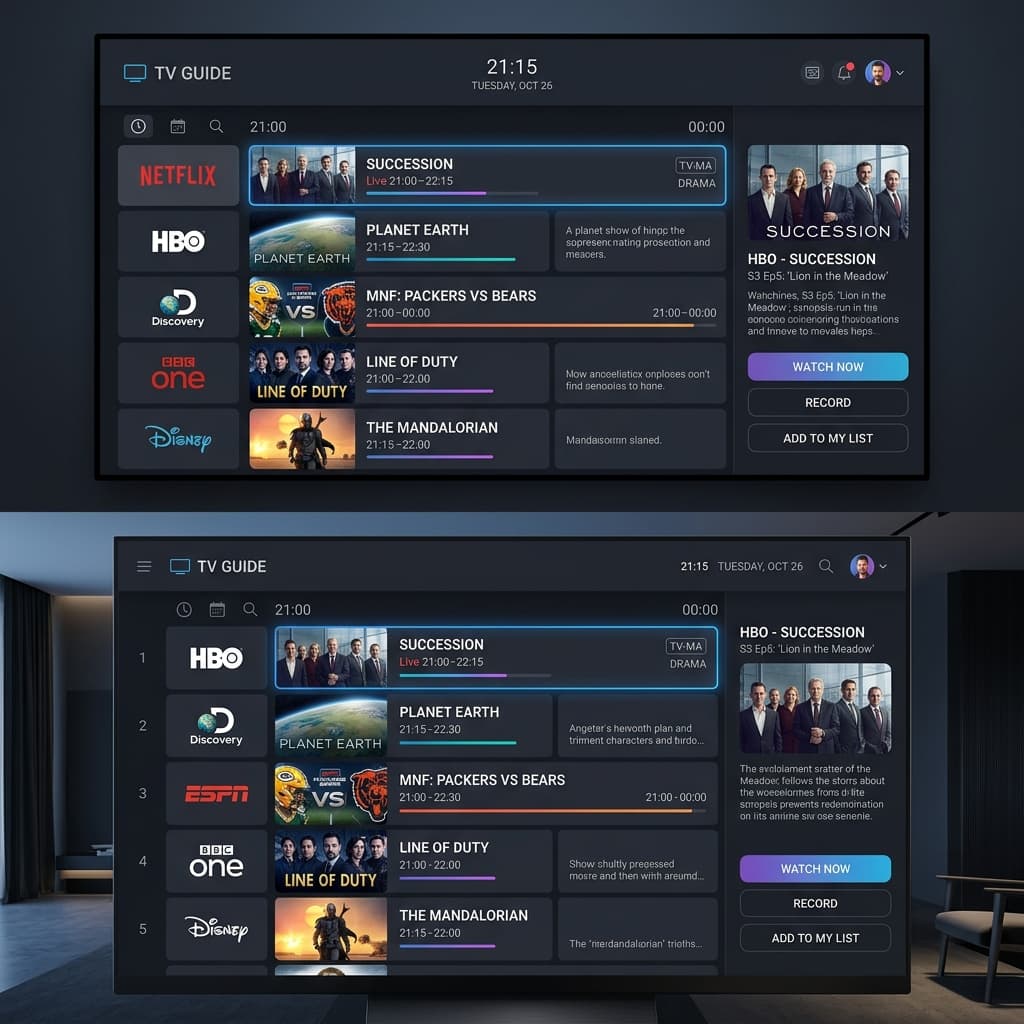
An Electronic Program Guide (EPG) is the engine that transforms raw live television streaming into a modern, interactive broadcasting experience. Without an EPG, watching television via an IPTV service feels like scrolling through an unlabelled catalog of thousands of numerical streams. With a fully configured, real-time EPG, users gain instant visibility into live show progress, detailed episode summaries, upcoming broadcast schedules, channel logos, and one-click catch-up capability. Whether you are using a premium service like doubleclick iptv or configuring an advanced third-party media player, understanding how EPG metadata is generated, delivered, mapped, and updated is essential for a seamless viewing experience.
Despite its importance, setting up and maintaining an accurate EPG is one of the most misunderstood aspects of IPTV configuration. Viewers frequently encounter blank TV guide grids, missing channel schedules, out-of-sync programme timings where sports matches or news broadcasts appear one or two hours off, or severe application sluggishness caused by oversized guide databases. This definitive guide delivers a complete technical and practical masterclass on Electronic Program Guides for 2026. We explore the underlying XMLTV file architecture, channel mapping mechanisms, application-level configuration across major platforms, timezone offset calculations, cache management, and proven troubleshooting steps for every common EPG issue.
What is an EPG? Core Principles and Architecture
In traditional digital broadcasting (such as satellite DVB-S2 or cable DVB-C), program metadata is continuously interleaved into the transport stream alongside video and audio packets. In Internet Protocol Television (IPTV), however, video streams and guide data are decoupled. The video stream delivers the raw audiovisual data, while the EPG is delivered separately as a structured data feed—most commonly in XMLTV format or via specialized JSON endpoints provided by an API.
This separation provides tremendous flexibility. It allows media players to download days of program metadata in advance, store it in a local database on your Smart TV, Firestick, or Android box, and display a responsive, grid-based program guide that operates independently of stream loading speeds. When you open your TV guide, the application does not query the internet for every program title you scroll past; instead, it queries its locally parsed EPG database.
The Technical Anatomy of XMLTV Format
XMLTV is an open, XML-based standard designed specifically for describing television listings. Understanding the basic structure of an XMLTV document helps demystify why certain channels display rich metadata while others remain blank. An XMLTV file consists of two primary XML node types: <channel> definitions and <programme> entries.
The <channel> element defines each broadcast station available in the guide. It assigns a unique identifier (ID), display names, and optional channel logos:
<channel id="HBO.us">
  <display-name>HBO HD East</display-name>
  <display-name>HBO East</display-name>
  <icon src="https://epg-provider.com/logos/hbo.png" />
</channel>
The <programme> element details individual television shows, movies, live sports events, or news broadcasts. It references the parent channel ID and includes exact start/stop timestamps, titles, descriptions, categories, episode numbers, and age ratings:
<programme start="20260819200000 +0000" stop="20260819210000 +0000" channel="HBO.us">
  <title lang="en">House of the Dragon</title>
  <sub-title lang="en">Season 3, Episode 4</sub-title>
  <desc lang="en">Tensions escalate across Westeros as new alliances are forged.</desc>
  <category lang="en">Drama</category>
  <episode-num system="xmltv_ns">2 . 3 .</episode-num>
  <rating system="MPAA"><value>TV-MA</value></rating>
</programme>
Notice the timestamp format: 20260819200000 +0000. This represents August 19, 2026, at 20:00:00 UTC. The +0000 designator specifies the Coordinated Universal Time timezone offset. If your media player does not accurately convert UTC timestamps to your local timezone, your guide will display shows at the wrong hours of the day.
How IPTV Applications Match EPG Data to Playlists
A frequent question among IPTV users is: "Why does my M3U playlist have 5,000 channels, but the EPG only displays program guide data for 3,500 of them?" The answer lies in the channel matching mechanism used by your player application.
When an IPTV application imports an M3U playlist file or an Xtream Codes API playlist, each channel entry contains metadata tags. In an M3U playlist, these tags appear inside the #EXTINF line:
#EXTINF:-1 tvg-id="HBO.us" tvg-name="HBO HD" tvg-logo="http://domain.com/hbo.png" group-title="USA Movies",HBO HD East
http://streaming-server.com:8080/live/username/password/1024.m3u8
The application compares the tvg-id attribute in the M3U line (in this case, HBO.us) against the id attribute of the <channel> nodes in the XMLTV file. If an exact match is found, the player links the XMLTV schedule to that channel line. If tvg-id is missing or mismatched (for example, if the M3U specifies tvg-id="HBO_East" while the XMLTV file uses id="HBO.us"), the application attempts a fallback match using the tvg-name or the visible channel name. For comprehensive playlist tagging syntax, read our detailed M3U playlist tutorial.
Xtream Codes API vs. Direct M3U + XMLTV Integration
Modern IPTV subscriptions utilize two primary methods to deliver EPG data to application players:
- Xtream Codes API Authentication: When you log into an application using a Server URL, Username, and Password, the app communicates with the server's API endpoint (
/player_api.php). The server handles EPG mapping internally and returns pre-linked XMLTV or JSON data directly to the app. For full credential setup, consult our Xtream Codes API guide. - M3U Playlist URL + External XMLTV URL: When using standalone M3U playlist links, you must supply both the playlist URL and a separate XMLTV EPG URL inside your media player settings. The media player performs the client-side parsing and mapping. While requiring slightly more setup, this method allows advanced users to aggregate multiple EPG sources or override default guide data.
Step-by-Step EPG Configuration Across Popular Media Players
Different application interfaces handle EPG imports, storage, and updates differently. Below are step-by-step setup and optimization instructions for the most popular IPTV players on Smart TVs, Firesticks, Android TV, and iOS devices.
1. TiviMate Premium (Android TV / Amazon Fire TV)
TiviMate is widely regarded as the gold standard for EPG management due to its multi-source EPG support, manual channel matching capabilities, and granular update controls.
- Automatic Setup: When adding an Xtream Codes or M3U playlist, enable "Include VOD" and "Import EPG" during the initial setup wizard. TiviMate automatically parses the associated EPG link.
- Adding a Custom EPG Source: Navigate to Settings → EPG → EPG Sources → Add Source. Select "M3U URL" or "XMLTV URL", enter your guide URL, and assign a friendly name.
- Assigning EPG to a Playlist: Go to Settings → Playlists → [Your Playlist] → Main EPG Source and select your desired source feed.
- Manual Channel Matching: If a specific channel lacks guide data, long-press the Select button on the channel while in the TV Guide grid, select "Assign EPG", type the channel name, and choose the correct XMLTV matching node from the list.
2. IPTV Smarters Pro (Android, iOS, Smart TV, Windows, Mac)
IPTV Smarters Pro provides straightforward EPG integration for cross-platform users.
- When signing in via Xtream Codes API, the EPG updates automatically on the home screen dashboard under the Install EPG icon.
- If guide data is missing, click Install EPG on the main menu, then tap Refresh EPG to force a fresh download from the server.
- In Settings → EPG Timeline, configure your preferred view layout (1-hour, 2-hour, or 3-hour grid intervals) and enable "Show Channel Logo".
3. Smart IPTV (SIPTV - Samsung Tizen & LG webOS)
Smart IPTV relies on cloud-side EPG assignment managed via the portal website. For platform-specific TV installation steps, review our Samsung Smart TV guide and LG webOS guide.
- When uploading your M3U playlist URL to the SIPTV portal, select your appropriate country prefix in the EPG dropdown menu.
- If uploading a static M3U file, ensure your M3U file includes valid
tvg-idcodes recognized by the SIPTV EPG database. - To force an EPG reload on your TV, press the 0 (Zero) button or Blue Key on your TV remote while viewing the app list.
4. OTT Navigator (Android TV & Mobile)
OTT Navigator excels at aggregating multiple EPG feeds and executing automated background updates.
- Navigate to Settings → Provider → EPG. Select "Add EPG" and paste your XMLTV URL.
- Enable "Priority EPG" if you maintain multiple providers, ensuring high-quality metadata takes precedence over basic channel lists.
- Enable "Apply EPG Shift" if your provider broadcasts in UTC but your player displays local times incorrectly.
Fixing EPG Timezone Mismatches and Time Offsets
One of the most common user frustrations is opening a TV guide and discovering that the 8:00 PM evening news is listed at 6:00 PM or 9:00 PM. This mismatch occurs due to timezone misalignment between the EPG source file, your local device settings, and the player application's offset configuration.
Understanding UTC and Timezone Shifts
XMLTV files are generated on servers located in various timezones around the world. Standard XMLTV guidelines stipulate that all program timestamps should be expressed in UTC with an explicit offset designator, such as +0000 (UTC), -0500 (US Eastern Standard Time), or +0200 (Central European Summer Time).
Timezone errors happen when:
- The EPG provider writes local timestamps into the XMLTV file but incorrectly labels them as UTC (
+0000). - Your streaming device (Firestick, Android Box, or Smart TV) has an incorrect local timezone set in system settings.
- The media player application ignores the XMLTV offset tag and assumes all schedules are local.
Step-by-Step Timezone Offset Fixes
Before adjusting settings inside your IPTV application, verify your device's global system time:
- On Fire TV: Go to Settings → Preferences → Time Zone and confirm your exact location and daylight saving time settings.
- On Android TV: Go to Settings → Device Preferences → Date & Time → Set Time Zone. Disable automatic network time temporarily if your router causes drift.
If your device time is correct but the guide remains shifted by an exact number of hours (e.g., +2 hours ahead or -1 hour behind), use your application's manual EPG Time Shift setting:
- In TiviMate: Go to Settings → EPG → EPG Sources → [Select Source] → Time offset. Adjust the slider in 30-minute or 1-hour increments (e.g., set to
+2:00or-1:00) until the current program aligns with live broadcast. - In IPTV Smarters Pro: Go to Settings → Time Shift. Select your playlist and adjust the offset value (+1h, +2h, -1h, etc.), then tap Save Changes and refresh the EPG.
- In Smart IPTV (SIPTV): Access app settings on your TV screen and locate the EPG Time Shift option. Adjust the offset integer (from -12 to +12 hours) and press Save.
Resolving Missing EPG Data and Blank TV Guides
A completely blank TV guide showing "No Information" across all channels indicates a failure in fetching, parsing, or storing the XMLTV feed. Below is a comprehensive diagnostic troubleshooting process to identify and resolve the root cause.
1. EPG File Size and Storage Limits
Comprehensive XMLTV files covering thousands of global channels can exceed 50 MB to 150 MB in uncompressed size. When parsed into a local database, an EPG file can consume over 300 MB of internal RAM and local flash storage.
Low-spec streaming sticks with limited internal storage often crash or silently abort EPG downloads when storage runs low. For storage optimization steps on Amazon hardware, follow our dedicated Fire TV Stick setup guide.
- Check free internal storage in your device settings. Ensure at least 1.5 GB of free space is available.
- Uninstall unused applications and clear app caches.
- In your IPTV player settings, reduce the EPG storage window. For example, in TiviMate, set "Past days to keep EPG" to
1 dayand "Future days to keep EPG" to2 daysinstead of 7 days. This dramatically shrinks database size.
2. Server Rate Limiting and URL Compression
IPTV providers and EPG hosts often compress XMLTV files to conserve bandwidth, appending extensions like .xml.gz or .xml.xz. Most modern applications (TiviMate, OTT Navigator, IPTV Smarters) decompress GZIP files automatically. However, if you enter an uncompressed .xml URL when the server requires a compressed .xml.gz URL (or vice versa), the download will fail.
Furthermore, requesting EPG updates too frequently (e.g., every 30 minutes) can cause the EPG server to temporarily block your IP address due to automated rate limiting. Set your application update frequency to once every 24 hours or at app launch only.
3. Clearing Corrupted EPG Caches
If an EPG update is interrupted by a Wi-Fi drop or power loss, the local database file can become corrupted, preventing new updates from saving. Clearing the internal EPG cache forces the application to rebuild its database from scratch:
- In TiviMate: Go to Settings → EPG → Clear EPG. Confirm clearing, then select Update EPG.
- In IPTV Smarters: Go to Settings → App Data → Clear EPG Cache. Return to the home screen and select Install EPG.
- In Android System Settings: If clearing in-app cache fails, navigate to Settings → Apps → [Your IPTV App] → Clear Cache (do not click Clear Data unless you have saved your login details).
External EPG Aggregation and Custom XMLTV Sources
For demanding users who require 100% guide coverage across obscure international channels, single EPG feeds provided by standard subscriptions may occasionally fall short. Advanced media players allow you to aggregate multiple EPG sources into a unified guide interface.
How EPG Aggregation Works
When you configure multiple EPG sources inside a player like TiviMate or OTT Navigator, the application establishes a priority hierarchy:
| EPG Source Type | Primary Strengths | Best Used For |
|---|---|---|
| Default Provider EPG (Xtream API) | Pre-mapped to channel list, zero manual setup required | General entertainment, national channels, local sports |
| Third-Party XMLTV Feed (e.g., m3u4u, IPTVBoss) | Rich metadata, poster art, episode numbers, multi-language summaries | Movie channels, premium series, specialized categories |
| Community / Regional EPG Source | Deep coverage for niche international and regional broadcasts | Foreign language streams, expat packages, regional sports |
By assigning the Default Provider EPG as Source 1 and an External XMLTV URL as Source 2, your player will automatically fill in missing schedule gaps from Source 2 whenever Source 1 lacks data for a particular station.
EPG Refresh Rates, Data Usage and Performance Optimization
Managing EPG background activity is essential for preserving streaming bandwidth and maintaining smooth hardware performance, particularly on streaming sticks connected via Wi-Fi.
Optimizing Refresh Frequency and Bandwidth
Downloading a full XMLTV file consumes between 20 MB and 100 MB of data per update. If your household operates multiple IPTV devices on a metered internet connection, automated background updates across all screens can cause unexpected network congestion.
- Set EPG update intervals to Every 24 Hours or On App Launch Only. Avoid setting intervals below 12 hours.
- Schedule automatic updates during off-peak hours (e.g., 4:00 AM) when no one is actively streaming live video.
- Ensure your device is connected via 5 GHz Wi-Fi or Ethernet to complete XMLTV file downloads rapidly without timing out.
Comprehensive Application EPG Feature Comparison
Not all IPTV applications handle EPG data with the same level of sophistication. The comparison table below highlights key EPG features across leading 2026 media player software:
| Application | Multi-EPG Support | Manual Channel Mapping | Time Offset Adjustment | Catch-Up Integration | Performance Score |
|---|---|---|---|---|---|
| TiviMate Premium | Yes (Unlimited) | Yes (Full Search) | Yes (Per Source/Channel) | Yes (Icon Grid) | 10/10 |
| OTT Navigator | Yes (Priority Based) | Yes (Advanced) | Yes (Global & Local) | Yes (Archive List) | 9.5/10 |
| IPTV Smarters Pro | Limited (Single API/M3U) | No | Yes (Global Offset) | Yes (Timeline View) | 8/10 |
| Smart IPTV (SIPTV) | Via Portal Upload | No (Web Only) | Yes (App Settings) | Limited | 7/10 |
| iPlayTV (Apple TV) | Yes | Basic | Yes | Yes | 9/10 |
Troubleshooting EPG Error Scenarios
When issues arise, consult this rapid decision matrix to pinpoint the cause and apply the correct resolution:
- Symptom: Guide is completely blank across all channels.
Root Cause: Invalid XMLTV URL, expired playlist session, or corrupted cache.
Fix: Verify your subscription account status, clear EPG cache in app settings, and force a manual EPG update. Confirm server URL formatting with our support team. - Symptom: Program titles match, but times are off by exactly 1 to 3 hours.
Root Cause: Timezone offset misalignment between XMLTV UTC timestamp and local device time.
Fix: Check device system clock, then adjust EPG Time Shift (+1h, -2h, etc.) inside player settings. - Symptom: Guide updates fail midway or crash the application on Firestick.
Root Cause: Low internal device storage or excessive EPG history retention.
Fix: Reduce EPG storage window to 1 past day and 2 future days. Clear device cache in Amazon Fire TV settings. - Symptom: Specific sports or movie channels display "No Information Available" while general channels work.
Root Cause: Mismatchedtvg-idtag between M3U line and XMLTV channel node.
Fix: Use manual channel matching in TiviMate or OTT Navigator to search and link the correct XMLTV guide node. Consult credential syntax documentation for deep checks.
Conclusion and Best Practices Checklist
A properly configured Electronic Program Guide transforms your IPTV viewing from a simple video stream list into a rich, interactive television experience. By keeping your application storage lean, maintaining accurate device timezone settings, and using capable media players like TiviMate or IPTV Smarters Pro, you eliminate blank grids and out-of-sync schedules permanently.
Follow this quick checklist for optimal EPG health:
- Use Xtream Codes API login whenever possible for automated server-side EPG mapping.
- Ensure your streaming device has at least 1.5 GB of free internal storage.
- Set EPG update intervals to once every 24 hours to prevent IP rate limits.
- Adjust EPG Time Shift immediately if program times do not match live broadcasts.
- Clear EPG cache if guide data appears corrupted or stuck on outdated dates.
For further assistance with application configuration, device compatibility, or optimizing your streaming experience, explore our 2026 IPTV player comparison and complete hardware installation tutorials.