IPTV Multi-Screen & Multi-Room Setup Guide: Concurrent Streaming & Network Management
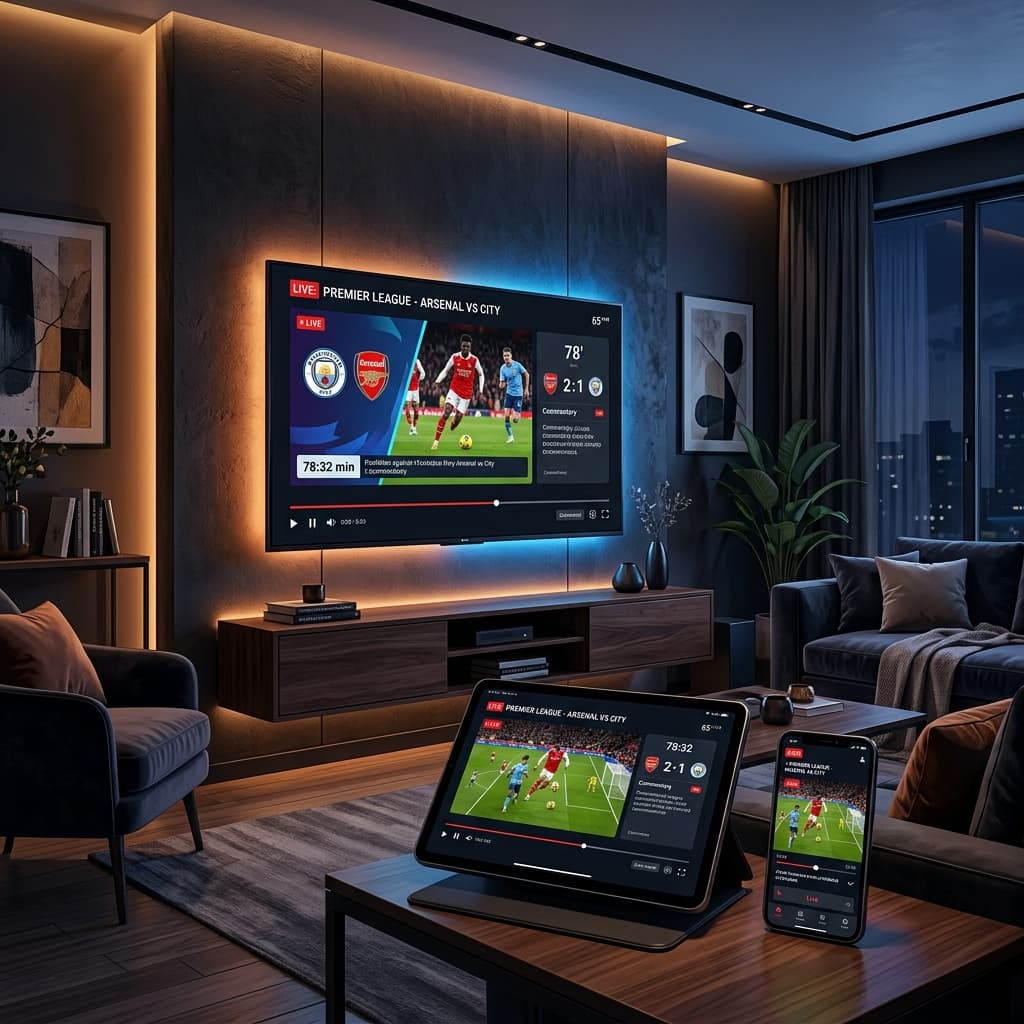
Transitioning from traditional cable or satellite television to an Internet Protocol Television (IPTV) setup is one of the most effective ways for modern households to cut costs while unlocking access to thousands of live channels, regional broadcasts, catch-up TV, and vast Video-On-Demand (VOD) libraries. However, while single-device streaming on a phone or main living room Smart TV is straightforward, configuring a seamless, multi-room, multi-screen streaming environment across an entire home presents unique technical and architectural challenges. When multiple family members attempt to watch 4K sports, live news, or movies simultaneously in different rooms, issues such as stream buffering, account lockout, MAC address conflicts, and home Wi-Fi congestion quickly arise without proper planning.
Whether you choose a premium subscription provider like doubleclick iptv or manage an array of hardware streaming devices across bedrooms, living rooms, and mobile devices, setting up a stable multi-screen environment requires a clear understanding of connection limits, server authentication protocols, router bandwidth allocation, and multi-device management. This comprehensive technical and practical guide for 2026 covers everything you need to know to build a robust, buffer-free multi-room IPTV system. We explore provider line limits, Xtream Codes versus MAC address multi-stream behavior, home network infrastructure calculations, Quality of Service (QoS) router configuration, and step-by-step installation strategies for every screen in your household.
What is Multi-Screen and Multi-Room IPTV Streaming?
In traditional broadcasting, multi-room television required running physical coaxial cables from a central satellite dish or cable box splitter into secondary set-top boxes located in bedrooms or kitchens. Each additional box often incurred monthly hardware rental fees from the cable operator.
In contrast, IPTV multi-screen streaming operates entirely over your local home network and internet connection. A multi-screen IPTV setup allows two or more devices—such as a living room Samsung Smart TV, a master bedroom Amazon Firestick, a basement Nvidia Shield, and an iPad on Wi-Fi—to access live channels or on-demand content simultaneously using either a single multi-connection subscription plan or coordinated account credentials.
Core Advantages of Household Multi-Screen Architectures
- Elimination of Proprietary Hardware Rentals: Instead of paying monthly rental fees for proprietary cable boxes, you utilize cost-effective media devices like Fire TV Sticks, Google Chromecast with Google TV, Apple TV, or native Smart TV operating systems (Tizen, webOS, Android TV).
- Flexible Cross-Device Viewing: Family members can start watching a live match in the living room and transition seamlessly to a mobile device or bedroom TV without losing playback state or account access. For device layout tips, refer to our beginner IPTV setup guide.
- Centralized Account Management: Multi-connection subscriptions consolidate billing into a single subscription dashboard while providing independent stream access for every viewer.
- Customized Room Profiles: Modern player applications allow individual room devices to maintain distinct favorite lists, parental control locks, watch histories, and EPG configurations tailored to specific family members.
How IPTV Providers Enforce Connection Limits
The single most critical factor in multi-room streaming is understanding your subscription's connection limit (often referred to as "lines" or "simultaneous streams"). IPTV servers strictly monitor and regulate how many active video streams an account consumes at any given second.
If your subscription plan is rated for 1 Connection, opening a live stream on your living room TV while someone else attempts to play a channel on a bedroom Firestick will cause one of three automated responses from the server:
- Stream Overwrite: The initial stream on the living room TV will immediately freeze or terminate as the server hands the active line to the second device.
- Stream Rejection ("Max Connections Exceeded"): The second device will fail to load, displaying an error message such as "Server Limit Reached", "Too Many Connections", or "Authentication Failed".
- Temporary Account Lockout: Repeated attempts to stream simultaneously on a single-connection account can trigger an automated security firewall on the provider's server, temporarily banning your IP address for 15 to 60 minutes to prevent unauthorized account sharing. Review our pricing and subscription options to select a multi-line plan tailored to your household.
MAC Address Binding vs. Xtream Codes API Multi-Stream Protocols
How your multi-room setup behaves depends heavily on the authentication protocol assigned to your IPTV account. Providers utilize two primary authentication mechanisms:
| Authentication Protocol | Multi-Device Capability | Hardware Requirements | Best Use Case |
|---|---|---|---|
| MAC Address Binding (Stalker Portal / MAG) | Restricted to 1 Physical Device | Locked to single MAC address (00:1A:79:XX:XX:XX) | Single dedicated set-top box (MAG box, Formuler) |
| Xtream Codes API (Username & Password) | Multi-Device Compatible (1 to 5 Lines) | Any IPTV player app across Android, Fire TV, iOS, Smart TV | Multi-room household streaming across varied devices |
| M3U Playlist URL | Multi-Device Compatible (Line Limited) | Compatible with all M3U-supported players | Flexible player setup with client-side line management |
If your service relies on MAC address binding, you cannot share that account across multiple rooms because the server only authorizes requests originating from that specific hardware MAC. For multi-room setups, Xtream Codes API logins are strongly recommended because they allow multiple devices to authenticate using the same credentials up to your plan's line limit.
Calculating Household Bandwidth for Concurrent HD and 4K Streams
A common misconception among cord-cutters is that having a fast 100 Mbps internet connection guarantees flawless multi-room streaming. While maximum download speed is important, concurrent multi-screen playback depends equally on sustained local network throughput, Wi-Fi airtime efficiency, and router packet processing capacity.
Bandwidth Requirements Per Stream Quality
When multiple screens play content simultaneously, each stream consumes a continuous portion of your connection's download capacity. For detailed bitrate optimization, see our 4K Ultra HD streaming guide.
- Standard Definition (SD 480p): 3 Mbps to 5 Mbps per screen
- High Definition (HD 720p/1080p @ 30fps): 8 Mbps to 12 Mbps per screen
- Full HD 60fps (Live Sports 1080p60): 15 Mbps to 20 Mbps per screen
- 4K Ultra HD (HEVC / H.265 / HDR): 25 Mbps to 45 Mbps per stream
To calculate your household's minimum internet speed requirement, multiply the number of active rooms by the desired stream resolution and add a 30% overhead buffer for other household internet activities (such as web browsing, cloud backups, or gaming):
Minimum Bandwidth = [(Room 1 4K Stream: 35 Mbps) + (Room 2 1080p Stream: 15 Mbps) + (Room 3 1080p Stream: 15 Mbps)] x 1.3
Minimum Bandwidth = [65 Mbps] x 1.3 = 84.5 Mbps Sustained Connection
If three family members attempt to stream simultaneously on a 50 Mbps internet plan, the connection will become saturated, leading to buffer wheels, packet loss, and frame drops across all screens.
Router Configuration and Quality of Service (QoS) for Multi-Room IPTV
Even with a gigabit fiber connection, home Wi-Fi routers often fail to prioritize video streaming traffic over background network data. For complete router tuning parameters, check our home network optimization guide.
Configuring Quality of Service (QoS) Priorities
Quality of Service (QoS) is a router feature that allows you to classify network traffic and assign high-priority status to streaming media devices over general internet browsing. Implementing QoS ensures your IPTV streams receive dedicated bandwidth even during heavy household network usage.
- Access Your Router Admin Portal: Open a web browser on a computer connected to your home network and enter your router's IP address (typically
192.168.1.1or192.168.0.1). Log in with your admin credentials. - Locate Quality of Service (QoS) Settings: Look under Advanced Settings, Traffic Management, or Network Optimization.
- Assign Static IP Addresses to Streaming Devices: In your router's DHCP Reservation menu, assign permanent IP addresses to each IPTV streaming device in your home (e.g., Living Room TV:
192.168.1.50, Bedroom Firestick:192.168.1.51). - Set Highest Priority Rules: In the QoS prioritization menu, add rules assigning "Highest Priority" or "Real-Time Media Priority" to the MAC or IP addresses of your streaming devices.
- Enable WMM (Wi-Fi Multimedia): Ensure WMM is enabled in your router's wireless settings. WMM automatically prioritizes audio and video data packets over standard Wi-Fi data transmissions.
Wi-Fi Band Selection: 2.4 GHz vs. 5 GHz vs. 6 GHz
Wi-Fi frequency band selection plays a vital role in multi-room stability:
- 2.4 GHz Wi-Fi: Offers long range through walls but limited bandwidth (max real-world speed 30-50 Mbps) and heavy interference from microwave ovens, Bluetooth devices, and neighbor networks. Avoid 2.4 GHz for 1080p60 or 4K multi-room streaming.
- 5 GHz Wi-Fi: Delivers high speeds (200-500+ Mbps) and minimal interference, ideal for 4K streaming. However, 5 GHz signals struggle to penetrate thick brick or concrete walls between rooms.
- Ethernet (LAN) & Mesh Wi-Fi: For primary living room TVs and main devices, a direct Cat6 Ethernet cable connection is always superior to Wi-Fi. For multi-story homes where wiring Ethernet is impractical, a dedicated Tri-Band Mesh Wi-Fi System (such as Wi-Fi 6 or 6E mesh nodes) provides seamless high-speed coverage to every room.
Step-by-Step Multi-Room Hardware Setup Plan
Building a successful multi-room IPTV ecosystem involves selecting the right hardware combination for each location based on room usage, TV capabilities, and user preferences.
Room 1: The Main Living Room (Primary Viewing Hub)
The primary living room requires maximum performance, crisp 4K HDR video rendering, multi-channel surround sound output, and lightning-fast menu navigation.
- Recommended Hardware: Apple TV 4K, Nvidia Shield TV Pro, Amazon Fire TV Stick 4K Max, or a high-end Android TV / Google TV set (Sony, Philips, TCL).
- Network Connection: Direct Cat6 Ethernet cable connected directly to the primary router or a gigabit network switch.
- Recommended Application: TiviMate Premium (Android), iPlayTV (Apple TV), or native player apps.
- Configuration: Set stream buffer size to "Large", enable "Hardware Decoding (HW+)", and configure full EPG auto-updates.
Room 2: Master Bedroom (Secondary Viewing Hub)
Bedrooms require compact, unobtrusive streaming hardware that operates over wireless Wi-Fi without bulky cables or power bricks. For Android device steps, read our Android TV setup guide.
- Recommended Hardware: Amazon Fire TV Stick 4K, Chromecast with Google TV (4K), or native Smart TV apps (Samsung Tizen or LG webOS).
- Network Connection: 5 GHz Wi-Fi connection paired with a nearby Mesh Wi-Fi node.
- Recommended Application: IPTV Smarters Pro, TiviMate (synced via shared playlist credentials), or native TV apps.
- Configuration: Mirror playlist favorites from the main account, enable sleep timer functions, and set stream resolution to 1080p HD if 4K Wi-Fi signal strength drops.
Room 3: Guest Room or Kitchen Screen (Occasional Viewing)
Secondary rooms or small kitchen display TVs require simple, low-cost equipment with intuitive remote controls. Follow our Fire TV Stick setup guide for hardware installation.
- Recommended Hardware: Xiaomi TV Stick 4K, Roku (where supported by generic Web Video Caster apps), or budget Android TV boxes.
- Network Connection: 5 GHz Wi-Fi or Ethernet over Powerline (PLC) adapters.
- Recommended Application: Simple IPTV players with simplified grid views and large font sizes.
Local Casting vs. Native App Execution in Secondary Rooms
When setting up secondary screens in bedrooms or home offices, users often choose between two deployment strategies: Native App Execution versus Mobile Casting (Chromecast / AirPlay).
Comparison of Multi-Room Deployment Strategies
| Feature | Native App Execution (Dedicated Box/Stick) | Mobile Casting (Chromecast / AirPlay) |
|---|---|---|
| User Interface | Full TV Guide grid, remote control navigation | Controlled entirely via mobile phone screen |
| Stream Stability | High (Direct stream connection from router) | Medium (Dependent on phone battery & Wi-Fi bridge) |
| Phone Availability | Phone remains completely free for calls and apps | Phone battery drains faster during active casting |
| Multi-User Ease | Anyone in the room can use the TV remote control | Requires the phone owner to change channels |
While casting from a smartphone is convenient for occasional viewing, Native App Execution using a dedicated HDMI streaming stick ($30-$50) delivers a far superior, independent viewing experience for secondary rooms.
Preventing Account Suspensions and "Max Connections" Overages
Managing a multi-screen household requires strict adherence to your provider's line limits. Accidental connection overages are the number one cause of temporary account bans and frustrating stream interruptions.
Best Practices for Multi-Device Household Management
- Always Stop Streams Before Exiting: On Firesticks and Android boxes, pressing the Home button on your remote leaves the IPTV app running in the background, continuing to consume an active stream connection. Always press the Back button to exit the player app completely or tap Stop Stream before navigating away.
- Disable "Auto-Play Last Channel on Launch": In your IPTV player settings (such as TiviMate or IPTV Smarters), disable the setting that automatically tunes into the last watched channel when the app opens. This prevents background devices from silently initiating streams when powered on.
- Audit Active Connections via Provider Dashboard: Most reputable providers allow you to log into a web dashboard to view your active streams in real-time, showing the IP address, device type, and channel currently connected to your line.
- Separate Accounts for Remote Family Members: If you have family members living in a different home or city, do not share a single multi-connection subscription unless your provider explicitly permits multi-location IP streaming. Streaming simultaneously from two distinct external public IP addresses frequently triggers automated anti-fraud security bans.
Troubleshooting Multi-Screen Streaming Interruptions
If you experience buffering or stream errors when operating multiple screens, use this diagnostic roadmap to isolate and resolve the issue quickly:
- Issue: Living room stream buffers only when the bedroom TV is turned on.
Root Cause: Local Wi-Fi bandwidth saturation or router packet congestion.
Fix: Connect the living room TV via Ethernet cable. Configure router QoS to prioritize the living room device IP. Move the bedroom device to the 5 GHz Wi-Fi band. - Issue: Second TV displays "Server Error" or "Authentication Failed" while first TV works.
Root Cause: Multi-connection line limit exceeded or MAC address binding restriction.
Fix: Verify your subscription supports 2+ simultaneous connections. Ensure credentials use Xtream Codes API instead of MAC portal locks. Check if an app is left running in the background on another device. - Issue: Audio and video fall out of sync on secondary bedroom TVs.
Root Cause: Weak Wi-Fi signal causing packet loss or hardware decoder overload.
Fix: Change player decoder from Software (SW) to Hardware (HW or HW+). Lower video output from 4K to 1080p HD in secondary room settings. For deeper audio-video setup details, see our IPTV buffering decision guide. - Issue: Wi-Fi speeds drop drastically across all home devices during evening viewing.
Root Cause: Wireless channel interference from neighboring Wi-Fi networks.
Fix: Use a Wi-Fi analyzer tool to switch your router's 5 GHz band to an uncrowded channel (e.g., Channel 36, 44, or 149). Review your router wireless configuration.
Frequently Asked Questions
1. Can I watch IPTV on two TVs at the same time with one account?
Yes, provided your subscription plan includes at least 2 simultaneous connections. If you attempt to watch on two screens using a 1-connection subscription, one or both streams will freeze, fail to load, or trigger a temporary IP ban.
2. Does multi-room IPTV work over Wi-Fi, or is Ethernet required?
While Ethernet is recommended for primary 4K screens, multi-room IPTV works reliably over 5 GHz Wi-Fi or Mesh Wi-Fi systems. Avoid using 2.4 GHz Wi-Fi for multi-screen streaming, as its lower bandwidth and high interference cause frequent buffering.
3. Can I use my multi-screen IPTV subscription while traveling away from home?
Most providers allow mobile streaming while traveling, provided your total active streams across all locations do not exceed your account's line limit. However, streaming from two different public IP addresses simultaneously may require provider authorization.
4. Why does my Firestick keep streaming IPTV in the background when I turn off my TV?
Turning off your TV screen with its remote does not automatically power off connected HDMI Firesticks or Android dongles. If you leave an IPTV app playing a live stream, it continues drawing data in the background, occupying a server connection. Always press the Back button to exit the player app before turning off your TV.
5. How many Mbps do I need for a 3-screen IPTV household?
For 3 concurrent screens (e.g., one 4K stream and two 1080p HD streams), we recommend a minimum sustained internet speed of **75 Mbps to 100 Mbps**. This ensures sufficient bandwidth for all streams plus a 30% safety margin for other household devices.
Conclusion and Action Plan for Multi-Screen Success
Configuring a multi-room, multi-screen IPTV environment unlocks ultimate viewing flexibility for modern households. By securing a multi-connection subscription, pairing capable streaming hardware with dedicated 5 GHz Wi-Fi or Ethernet networks, enabling router QoS priorities, and practicing smart stream management, you can enjoy seamless, buffer-free entertainment in every room of your home.
Follow these core steps to finalize your multi-screen setup today:
- Confirm your subscription plan supports your exact number of concurrent household screens.
- Use Xtream Codes API authentication for multi-device login flexibility.
- Connect primary 4K screens via Ethernet and secondary screens via 5 GHz Wi-Fi.
- Configure Quality of Service (QoS) on your home router to prioritize streaming IP addresses.
- Train household members to exit player applications fully when finished viewing.
For additional hardware guides, device setup walkthroughs, and streaming optimization tips, visit our comprehensive Smart TV integration center.